
The home screen is the first screen you get when you login to your helpcenter. It's designed to provide you the most efficient way to manage your tickets. From the Home screen you can easily create a new ticket, view tickets assigned to you and your groups, ticket statistics, and easily view the most recent updates to your tickets.
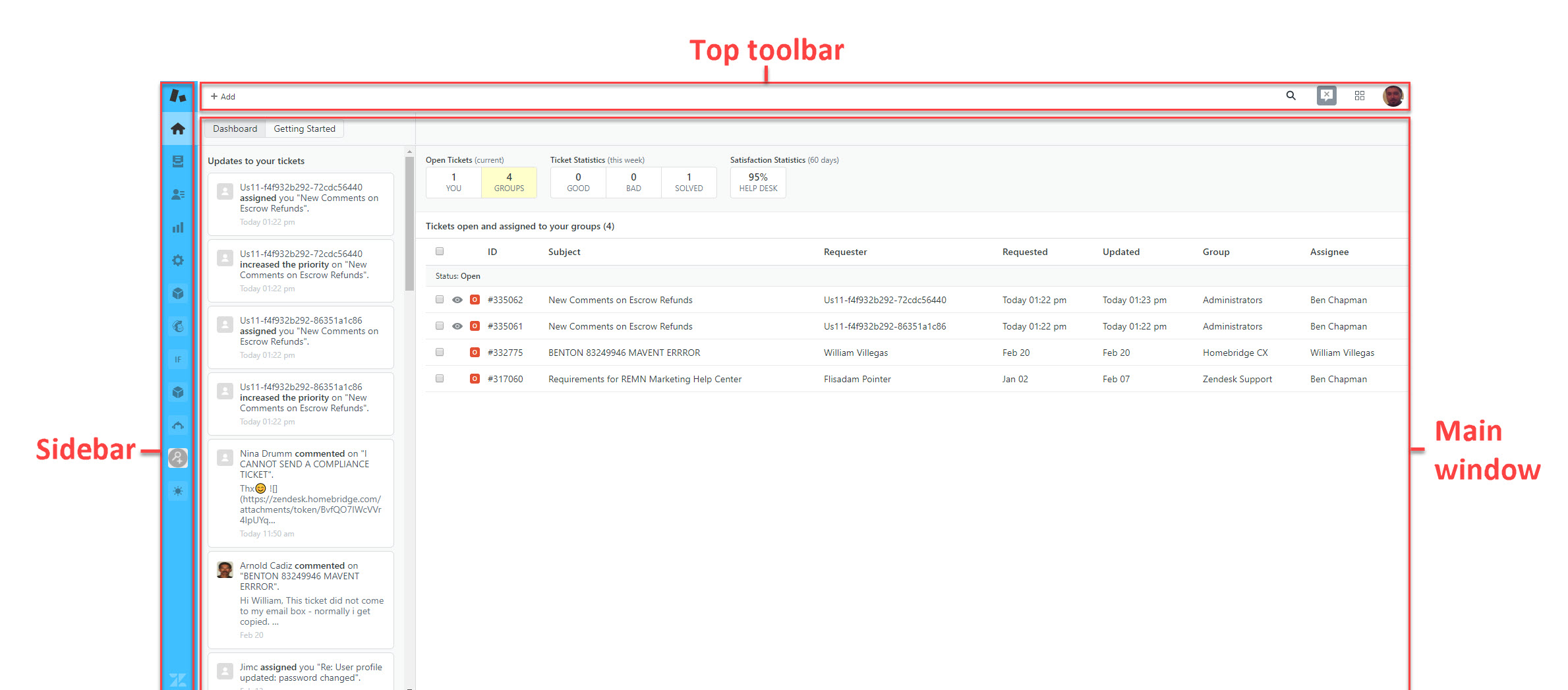
- Top toolbar: Create new tickets, search and toggle between multiple tickets

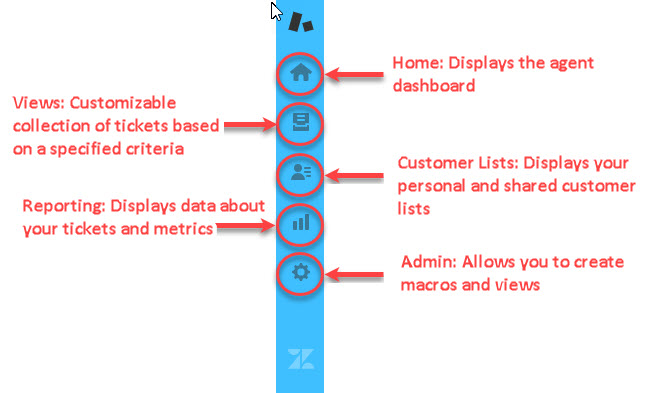
- Side bar: provides easy navigation to the main feature areas.
3. Main Window: The main window displays all the ticket and user properties.
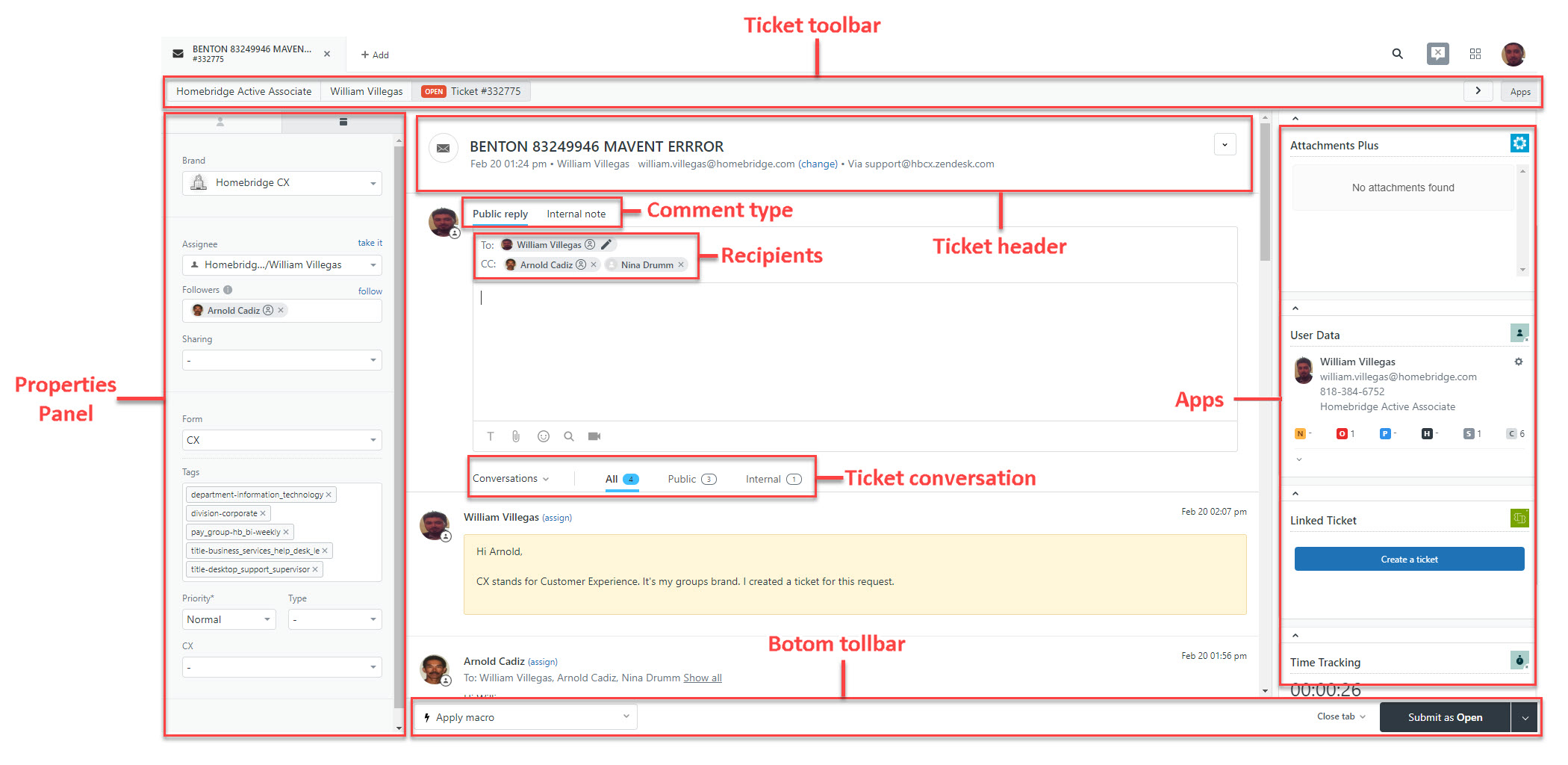
a. Properties panel: Contains Assignee, Followers, Form, Metadata, and custom ticket fields
b. Ticket toolbar: Contains User information, ticket info, and apps button. Click on apps to view available apps
c. Ticket header: Displays the subject, requester and ticket options
d. Comment type: Select between Public and Internal comment.
1. Public reply: Comments are visible to the requester, followers, and everyone in the recipients field (see recipients)
2. Internal Note: Comments are only visible to agents and followers. Requester can't see the comment.
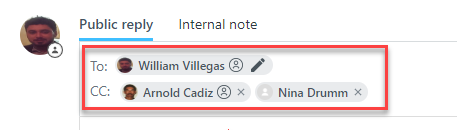
e. Recipients: Add\remove recipients to the To: or CC: fields.
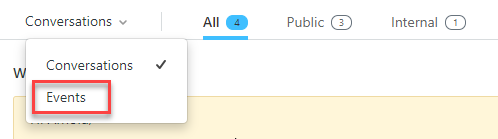
f. Ticket conversations: Allows you to select if you want to view All, Public, or internal conversations that have taken place in the ticket.
Note: You can click on the down arrow next to "Conversations" to switch to events. Events display important events in the lifecycle of the ticket. It contains a full ticket audit of all the events and conversations that have taken place in the ticket.
g. Bottom toolbar: Allows you to apply available macros to the ticket and change the ticket status. Select from Open, Pending, On-hold, or Solved.
h. Apps: Displays apps that are available in the system. Apps add functionality and easy of use functions to the ticket.
Comments
0 comments
Please sign in to leave a comment.