
How many clicks does it take to solve a ticket? How many times do you find yourself answering the same question over and over? If your answer is more than a handful you might be able to leverage the power of macros to automate your workflow. Macros are pre-configured actions that you can apply to a ticket with the push of a button. Some helpful actions include adding comments, status changes, group or agent assignments, and ticket field selections. Macros work best for request that can be answered with a standard response thus saving you time from having to write them manually.
Your can create new macros or make them from solved or open tickets that already have the crafted response and desired field selections. On this article we'll go through the steps of creating a new Macro.
Creating a new Macro
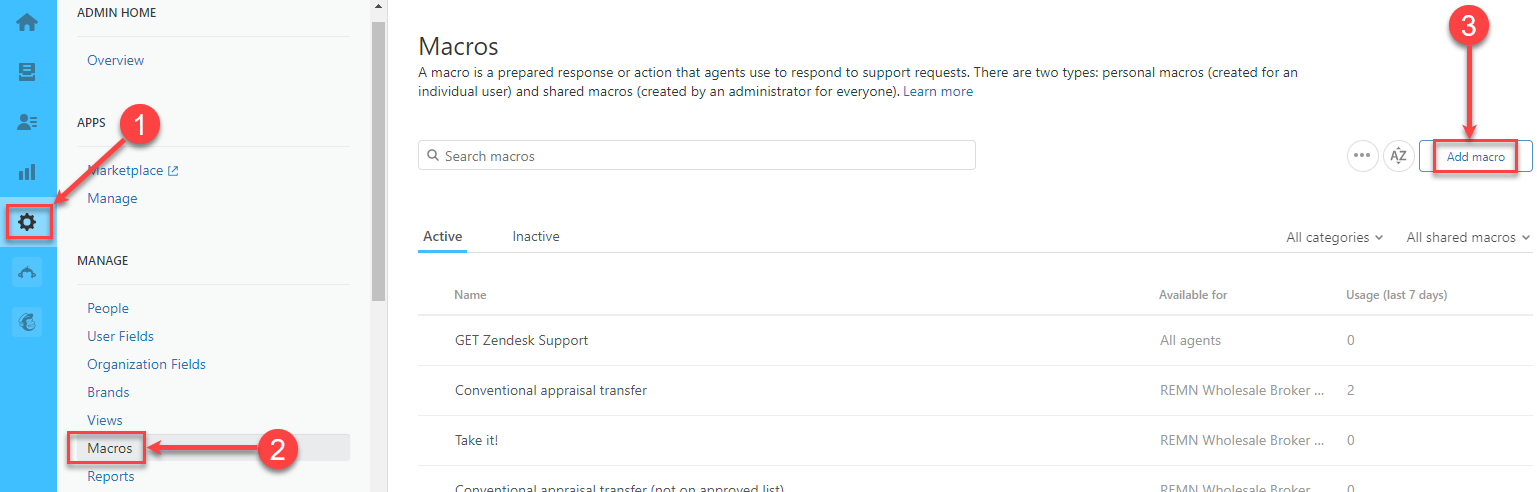
1. Click on the Admin icon > Select Macros > Add macros
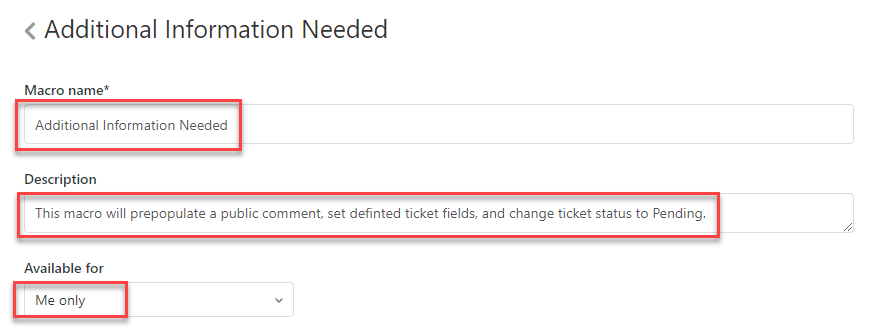
2. Type the macro name > description > availability. Note agents can only make personal macros. Do you want to share a personal macro with your team? We have a macro for that - it's called ""
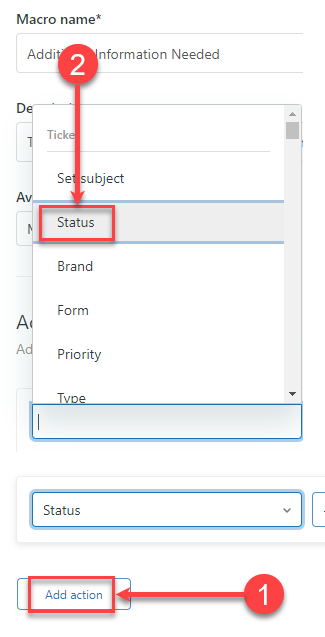
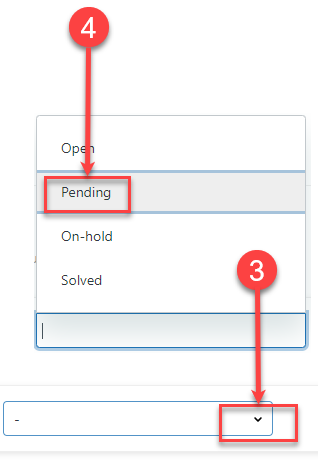
3. Add the first Action. Set Status to Pending. Note you can add as many actions as you need
a. Click on Add action > Select Status --------> b. Click on the down arrow > Pending

4. Add 2nd Action. Set comment mode to public. 
5. Add 3rd Action. Set comment/description, and add placeholder. Note: placeholders allow you to dynamically add user or ticket data to your comment.
a. Click add Action >Comment/description
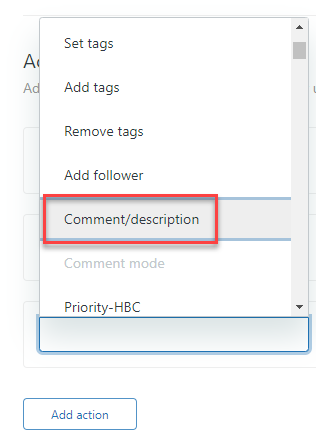
b. Click View available placeholders > Scroll down to Requester's first name > Copy
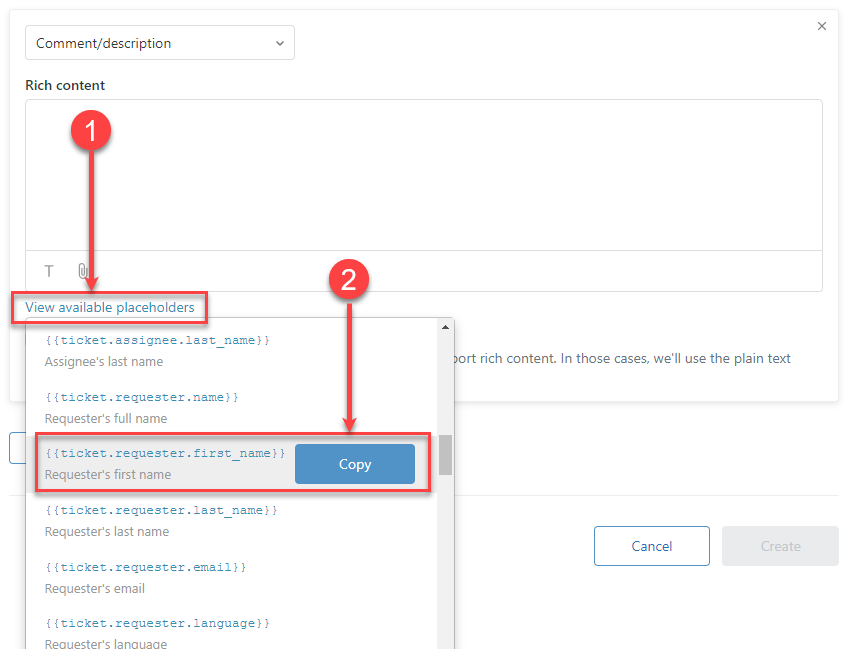
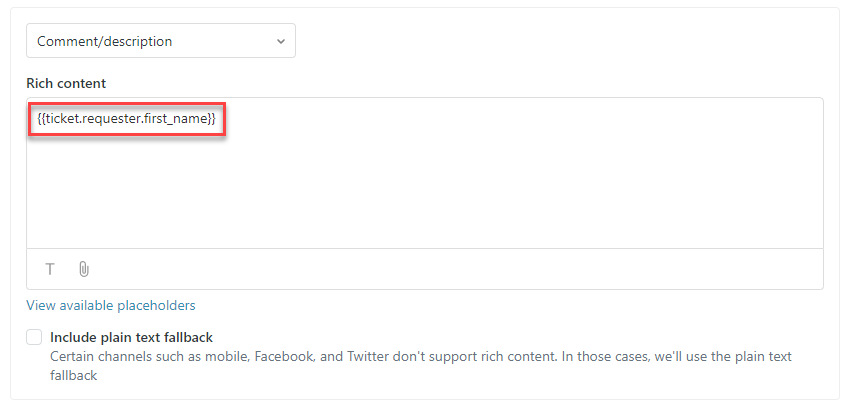
c. Click on the body of the Rich content field > Press Ctrl + V on your keyboard to Paste the placeholder
d. Add your desired text > Click Add action.
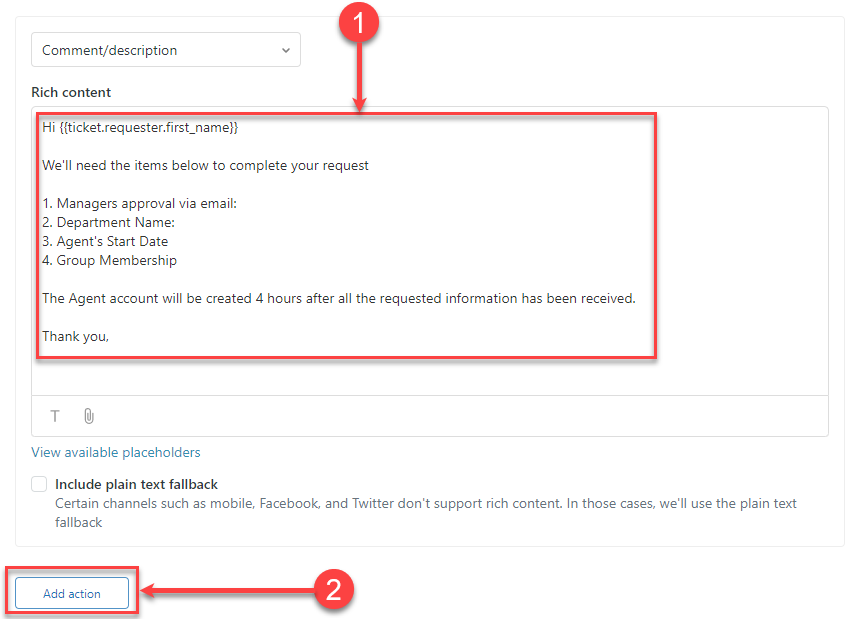
e. Add any additional Actions > Create
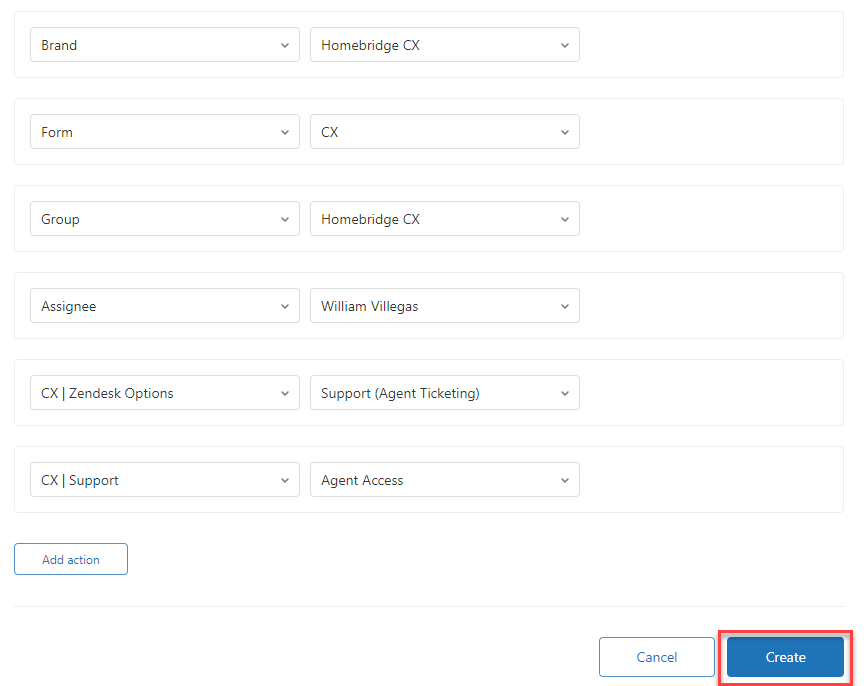
6. My new Macro Additional Information Needed gets created with a total of nine Actions. Whenever I get this request I can simply apply the macro and all the predefined values will get added to the ticket saving me at least nine clicks in addition to adding my crafted response. Magic
Comments
0 comments
Please sign in to leave a comment.